Appearance
Translation Management
Think of Translations as your organization's central dictionary. It holds the words, phrases, meanings, pronunciation help, and audio clips that you use in lessons.
Why Translations Matter
Translations matter because they let you reuse the same language work instead of typing it again in every lesson. When you add aaniin once with clear audio, you can use it in many questions. If you later improve the audio or notes, every linked question can use the improved version.
When possible, build common translations before you build questions. It saves time and keeps spelling, audio, and language direction consistent.
You can also add translations while writing rich text prompts, instructions, or information entries. When a word is not already in the dictionary, the rich text editor can open the same translation dialog in create mode and then insert the new linked word back into the content. See Adding Translated Words in Rich Text.
Open Translations
- Select Translations in the main navigation.
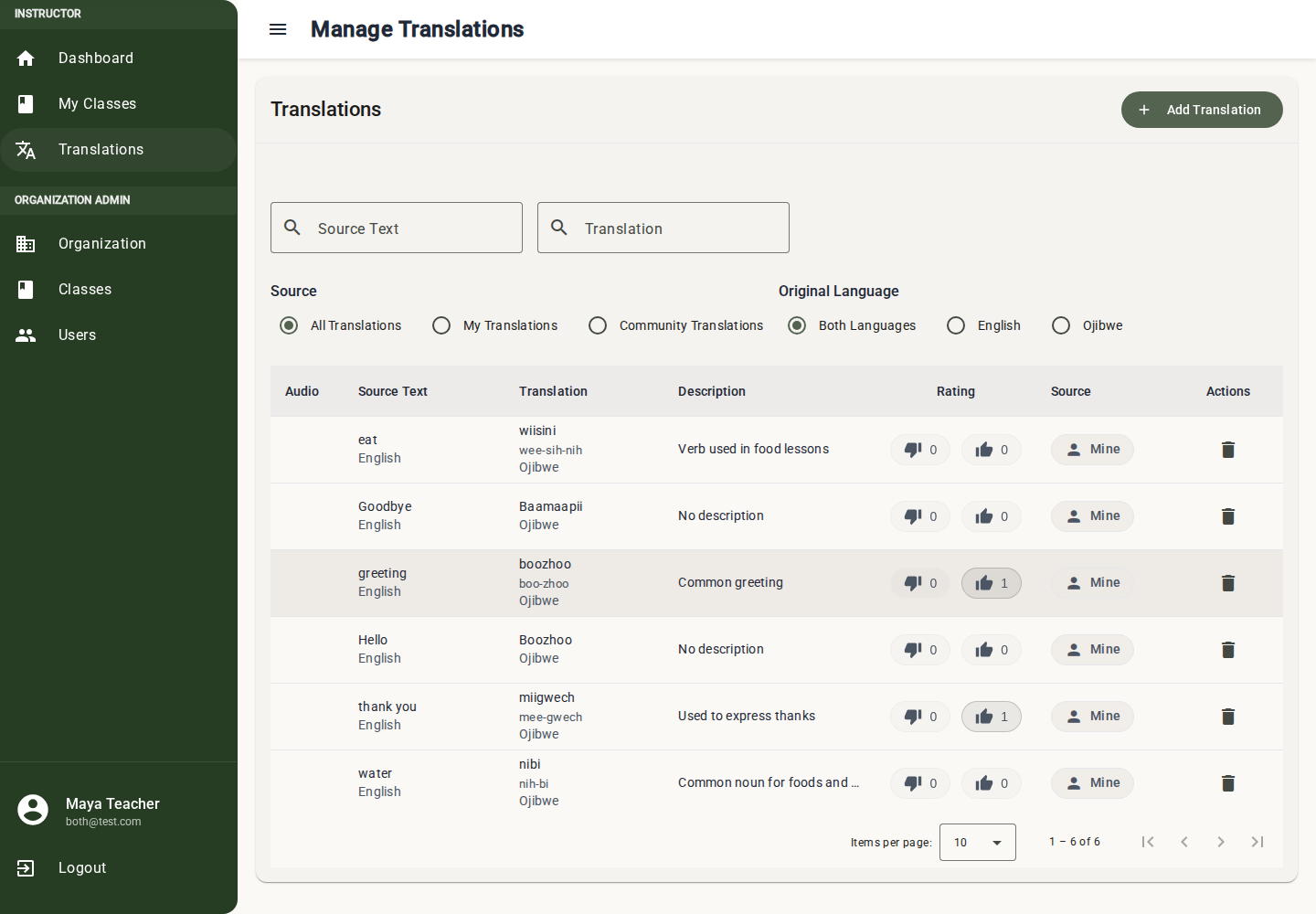
- Use the table to search, filter, open, and add dictionary entries.
Browsing the Translation Table
Columns
| Column | Content |
|---|---|
| Audio | Play button (if audio recording exists). Click to hear the pronunciation. |
| Source Text | The word or phrase you start from, plus pronunciation or writing-system help when available |
| Translation | The matching word or phrase in the other language, plus pronunciation or writing-system help when available |
| Description | Optional notes about the word (dialect, context, usage) |
| Rating | Thumbs up/down count from the community |
| Source | "Mine" (your organization) or "Community" (shared by others) |
Filtering
Filters help you find translations quickly:
Source Text Search:
- Type in the search box to filter by the original language text.
- Example: Type "hello" to find all translations of "hello".
- Case-insensitive, partial matching.
Translation Text Search:
- Type to filter by the translated text.
- Example: Type "aaniin" to find all translations containing "aaniin".
Which translations to show:
- All Translations: Show both your organization's translations and community-shared ones.
- My Translations: Only translations created within your organization.
- Community Translations: Only translations shared by other organizations.
Original Language:
- Filter by the source/original language when more than one source language is available.
- This is useful for organizations that maintain translations across multiple language pairs.
Page Controls
- Default: 10, 20, 50 translations per page.
- Use pagination controls at the bottom to browse more.
- Total count displayed.
Adding a New Translation
- Click the "Add Translation" button (top-right of the page).
- A dialog opens with these fields:
Step-by-Step
1. Language Selection:
- Source Language: Select the language you are starting from. For example, this might be English.
- Translation Language: Select the language you are teaching or translating into. For example, this might be Ojibwe.
- Use the direction button between them to flip source and translation languages.
2. Text Fields:
- Source Language Content (Required): Type the word/phrase in the source language.
- Example: "Hello"
- Translation Language Text (Required): Type the translation.
- Example: "Aaniin"
- Pronunciation/Romanization (Optional): Appears when the selected language has an extra helper field.
- Use it for pronunciation help, romanized spelling, syllabics support text, or another writing aid your program uses.
3. Description (Optional):
- Add context, dialect notes, or usage information.
- Example: "Informal greeting used in casual conversation"
- Helps other instructors understand when to use this translation.
4. Audio Recording (Highly Recommended):
Audio is crucial for language learning. Students need to hear correct pronunciation!
- Click the Microphone Icon button to start recording.
- Your browser may ask for microphone permission. Select Allow.
- Speak the word/phrase clearly ("Aaniin").
- Click the Square Stop Icon to finish recording.
- You'll see a waveform visualization during recording.
- Review: Click the Play button to listen to your recording.
- Re-record: Click the Trash icon to delete and try again.
- Upload alternative: Click "Upload" to use a pre-recorded audio file (MP3, WAV, WebM).
5. Community Sharing:
- Find the checkbox: "Share this translation with community"
- Checked: Other organizations' instructors can use this translation in their lessons
- Unchecked: Only your organization can use this translation
6. Two-way Translation:
- Check Bi-directional when the reverse translation should also be created.
- Example: creating English -> Ojibwe can also create Ojibwe -> English.
- Leave it unchecked when the reverse wording would need different context, wording, or audio.
7. Save:
- Click "Add Translation" button at the bottom.
- If audio was recorded, it uploads first, then links to the translation.
- Success notification confirms it was saved.
- The translation now appears in your table.
Editing a Translation
- Click on any translation row in the table.
- A detail/edit dialog opens.
What You Can Edit:
- Source Text and Translation Text: Update the words
- Pronunciation/Romanization fields: Update representation text for languages that support it
- Description: Add or modify context notes
- Audio: Record new audio to replace existing, or remove audio entirely
- Community Share: Toggle sharing on/off
What You Cannot Edit:
- Source Language and Translation Language: These are locked after creation. If you need different languages, create a new translation.
Save Changes:
- Click "Update Translation" to save.
- Changes propagate to all questions using this translation.
Translation Detail View
Open a translation's detail view when you want to review more than the table can show.
Detail Layout:
Header:
- Source text -> translation text
- Pronunciation or romanization text under either side when available
- Rating display (thumbs up / thumbs down counts)
Information Section:
- Audio Player: Full playback control if audio exists
- Description: Context and usage notes
- Visibility: "Shared with community" or "Organization only"
Comments Section:
- Discussion thread for this translation
- Add comments (up to 2000 characters)
- View comments from other instructors (with author name and organization)
- Edit or delete your own comments
- Comments paginated (5, 10, 25, 50 per page)
- "Edited" badge shown if a comment was modified
Translation Rating System
Ratings help the community identify high-quality translations.
How Ratings Work:
- Thumbs Up: This translation is accurate and well-recorded
- Thumbs Down: This translation may be inaccurate or poorly recorded
- Each user can vote once per translation (can change their vote)
Where You See Ratings:
- In the translations table (Rating column)
- In translation detail view
- In the translation selection dialog (when building questions)
Rating Counts:
- Displayed as: "5 up / 1 down" (or similar)
- Higher ratings = more trusted translation
- When multiple translations exist for the same word, use the highest-rated one
When to Rate:
- Thumbs Up: Audio is clear, translation is accurate for your dialect, spelling is correct
- Thumbs Down: Audio is unclear/incorrect, translation doesn't match your dialect, spelling errors
Translation Comments
Comments allow collaborative discussion about translations.
Adding a Comment:
- Open the translation detail view
- Scroll to the Comments section
- Type your comment in the text area (max 2000 characters)
- Click "Post Comment"
Comment Use Cases:
- "This pronunciation is Northern dialect. For Southern dialect, the stress is on the second syllable."
- "This spelling follows the double-vowel system. Some communities prefer the Fiero system."
- "Great audio quality! Could you also record the plural form?"
- "I think this translation is more commonly used as an informal greeting."
Managing Comments:
- Edit your own comments (shows "Edited" badge after)
- Delete your own comments (confirmation required)
- You cannot edit/delete other people's comments
Using Translations in Questions
When building questions, you interact with translations constantly:
Translation Suggestions:
When you type in word-bank style fields, the editor searches for matching translations and offers suggestions. Select a suggestion to link the translation immediately, or use Browse Translations when you need to search the dictionary manually.
Translation Dialog (In Question Editor):
Open the translation dialog from selected rich text, answer options, sentence words, or word-bank items:
- Search: Find existing translations by either language or pronunciation/romanization text
- Direction: Flip whether results show source-first or translation-first
- Scope: Choose whether to search all translations, only your organization's translations, or community translations
- Select: Click checkmark to link a translation to the word
- Create: Add a new translation directly from the editor (no need to leave the page!)
- N/A: Mark as No translation needed for names, punctuation, or words you do not want students to tap for help
Audio Linking:
When a translation has audio:
- Audio is automatically available to students for that word
- Appears as a play button in question previews
- Students can listen to pronunciation while answering
Community Translations
What Are Community Translations?
When instructors share translations, they become available to all organizations on the platform:
- Your Translations: Created by your organization (full control)
- Community Translations: Shared by other organizations (read-only to you)
Using Community Translations:
- Switch the filter to "Community" or "All"
- Browse shared translations
- Use them in your questions (they link just like your own)
- Rate them to help others know which are high quality
- Add comments for discussion
Sharing Your Translations:
When creating or editing a translation:
- Check "Share with community" to make it available to all
- Uncheck to keep it private to your organization
- Consider sharing translations with clear audio for common words
- Shared translations are most helpful when they include clear audio and notes about dialect or usage.
Dialect Considerations:
- Different communities may have different pronunciations/spellings
- Rate carefully: What's correct in your dialect may differ elsewhere
- Use comments: Note which dialect a translation represents
- Create your own: If a community translation doesn't match your dialect, create your own version
Audio Best Practices
Recording Quality Guidelines:
| Factor | Recommendation |
|---|---|
| Environment | Quiet room, no echo, no background noise |
| Microphone | External mic preferred; built-in laptop mic acceptable |
| Distance | 6-12 inches from microphone |
| Volume | Speak clearly at normal conversation volume |
| Pace | Natural speaking speed (not unnaturally slow) |
| Length | Single word: 1-3 seconds; Phrase: up to 10 seconds |
| Format | WebM (recording), MP3/WAV (upload) |
| File size | Under 10MB per recording |
Common Audio Issues:
- Clipping: Audio is too loud and sounds distorted. Move the microphone farther away.
- Too quiet: Audio is hard to hear. Move the microphone closer or speak louder.
- Background noise: Hum, fan noise, or other sounds are audible. Find a quieter room.
- Plosives: "P" and "B" sounds pop. Angle the microphone slightly off-center.
- Cut off: The word starts or ends abruptly. Wait a beat before and after speaking.
Elder Recordings:
If you have access to fluent speakers or elders:
- Record their pronunciations whenever possible
- These are invaluable for students
- Upload as MP3/WAV files
- Note the speaker in the Description field
- Consider sharing with community
Bulk Translation Strategies
Planning a Unit's Vocabulary:
- List all words you'll need for the upcoming unit
- Check existing translations: Search for each word (may already exist)
- Create missing translations: Add new ones with audio
- Organize by theme: Description field can note the unit/theme
- Share common words: Generic vocabulary is great for community sharing
Efficiency Tips:
- Add translations in batches (all words for a topic at once)
- Record audio in one session (maintains consistent quality)
- Use "Browse Translations" in question editors to avoid re-typing
- Community translations save time - check before creating duplicates
Troubleshooting
"No audio" on a translation
- Audio may not have been recorded
- Edit the translation and add audio
- Check if audio uploaded successfully (preview should play)
Audio sounds distorted
- Re-record in a quieter environment
- Check microphone settings in browser
- Try uploading a pre-recorded file instead
Can't find a translation
- Try different search terms (partial matches work)
- Switch between "Mine" and "All" scope
- The translation may exist in a different language direction
- Check spelling carefully
Translation doesn't match my dialect
- Create your own version with correct pronunciation
- Rate the existing one (thumbs down if inaccurate for your community)
- Add a comment explaining the dialect difference
Translation updated but questions still show old text
- Translations sync automatically - refresh the question editor
- If editing in a question, the translation coordination service should update all instances
- Try refreshing the page
Summary: Translation Workflow
- Plan vocabulary for upcoming lessons.
- Search for each word in existing translations.
- Create missing translations with audio.
- Share common words with the community when appropriate.
- Build questions using linked translations from the dictionary.
- Students hear audio and see translation help in lessons.
- Rate and comment on community translations to help others.
- Keep the dictionary growing over time.
A well-maintained translation dictionary helps lessons come together faster and keeps language support consistent for students.