Appearance
Record Audio Editor
Use Record Audio when students should practice speaking a word or phrase. This question type is for pronunciation and oral production, so it is not automatically graded.
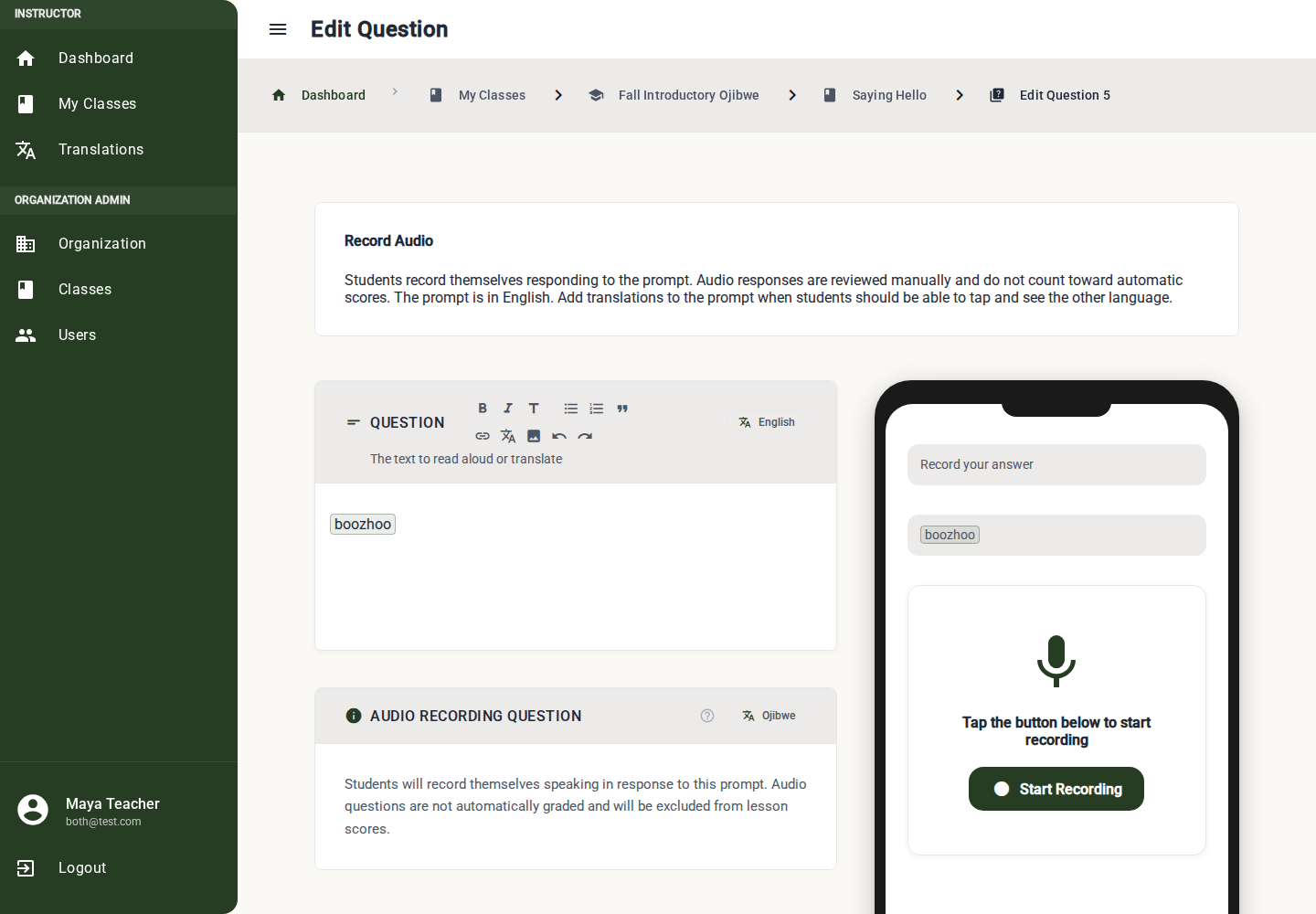
Build a Record Audio Question
1. Write the Prompt
Use the rich text Question editor for the word, phrase, or instruction students should speak.
Example: "Say Aaniin."
Link the phrase to a translation when students should be able to tap for help before recording.
2. Add Context if Needed
Insert an image or extra instructions if students need cultural, visual, or situational context before speaking.
3. Review the Preview
Students see the prompt and a recording control. They record their spoken answer and submit it with the lesson.
Grading
Record Audio questions are excluded from automatic lesson scoring. Review them manually in Submission Review, where you can listen to the student's recording and provide feedback.
IMPORTANT
Record Audio questions are the main place to assess pronunciation. Review these submissions and provide personalized feedback when possible.
What Must Be Complete
Before publishing, the editor checks:
- Prompt text is present.
- Prompt translations are linked when prompt translations are enabled.
Best Practices
- Keep the spoken target short for early learners.
- Use clear prompt text such as "Say this word" or "Record this phrase."
- Add audio to the related translation record when students should hear a model before recording.
- Pair audio practice with earlier recognition or recall questions in the same lesson.