Appearance
Authentication & Profile
Use this guide when you need to sign in, reset your password, set your first password, change notification preferences, or update your profile.
Who Uses These Screens
Instructors, instructor admins, organization admins, and super users sign in with an email address and password. Some organizations also use single sign-on (SSO), which means you sign in with the same account you use for work or school. Students use the mobile app with class access codes, so student login is covered in Student Management.
Sign In
- Open the sign-in page.
- Enter your email in Email Address.
- Enter your password in Password.
- Use the visibility icon if you need to check the password text.
- Select Sign In.
After sign in, the app redirects you based on your role:
| Role | Where you usually land |
|---|---|
| Super user | Organization list |
| Instructor admin | Instructor dashboard |
| Instructor | Instructor dashboard |
| Organization admin | Organization administration area |
WARNING
If the organization account is in arrears, the app sends you to the payment-required screen instead of the normal dashboard.
Sign In with SSO
If your organization uses single sign-on (SSO):
- Open the sign-in page.
- Enter your work email in Email Address.
- Select Continue with SSO.
- Complete sign-in with your organization's normal work or school account.
- The app returns you to Ojibwe Translate after your account is confirmed.
The SSO button uses your email address to find the correct sign-in service. If the app cannot find one for the part after @ in your email address, it asks you to contact your administrator or use password sign-in.
INFO
Some organizations require SSO. In that case, password sign-in is not the expected path for organization users.
Login Errors
The sign-in form checks for missing or incorrectly written information before it tries to sign you in.
| Message | What it means | How to fix it |
|---|---|---|
| Email is required | The email field is blank. | Enter the email for your platform account. |
| Please enter a valid email address | The email address is not written correctly. | Check for a missing @, the part after @, or a typo. |
| Password is required | The password field is blank. | Enter your password. |
| Login failed. Please try again. | The email or password was not accepted. | Recheck credentials or reset the password. |
| Enter your work email to continue with SSO | The SSO button was used before an email was entered. | Enter your organization email first. |
| No SSO provider is configured for this email address | The app could not find the right single sign-on service for that email address. | Check the part after @ in the email address or ask an administrator to review SSO settings. |
| SSO login failed. Please try again or contact your administrator. | The single sign-on process did not finish successfully. | Try again, then contact an administrator if it repeats. |
Reset a Forgotten Password
- Open the sign-in page.
- Select Forgot password?.
- Enter your email on the Reset Password screen.
- Select Send Instructions.
- Check your email for the reset instructions.
For privacy, the reset screen uses the same success message whether or not an account exists for that email address.
Set an Initial or Reset Password
Password setup links take you to a secure password setup page.
- Open the password setup link from your email.
- Enter a new password in New Password.
- Re-enter it in Confirm Password.
- Select Set Password.
- After success, return to the sign-in page.
Passwords must be at least 8 characters. The confirmation field must exactly match the new password.
INFO
If you are already signed in as a different user when you open a password setup link, the app signs out the current session before continuing. This protects against setting a password for the wrong account.
Open Your Profile
Use the profile menu in the application header, then open User Profile. The profile screen has three tabs.
| Tab | What it shows |
|---|---|
| Profile Information | Your name, email, and role chips such as admin or instructor. |
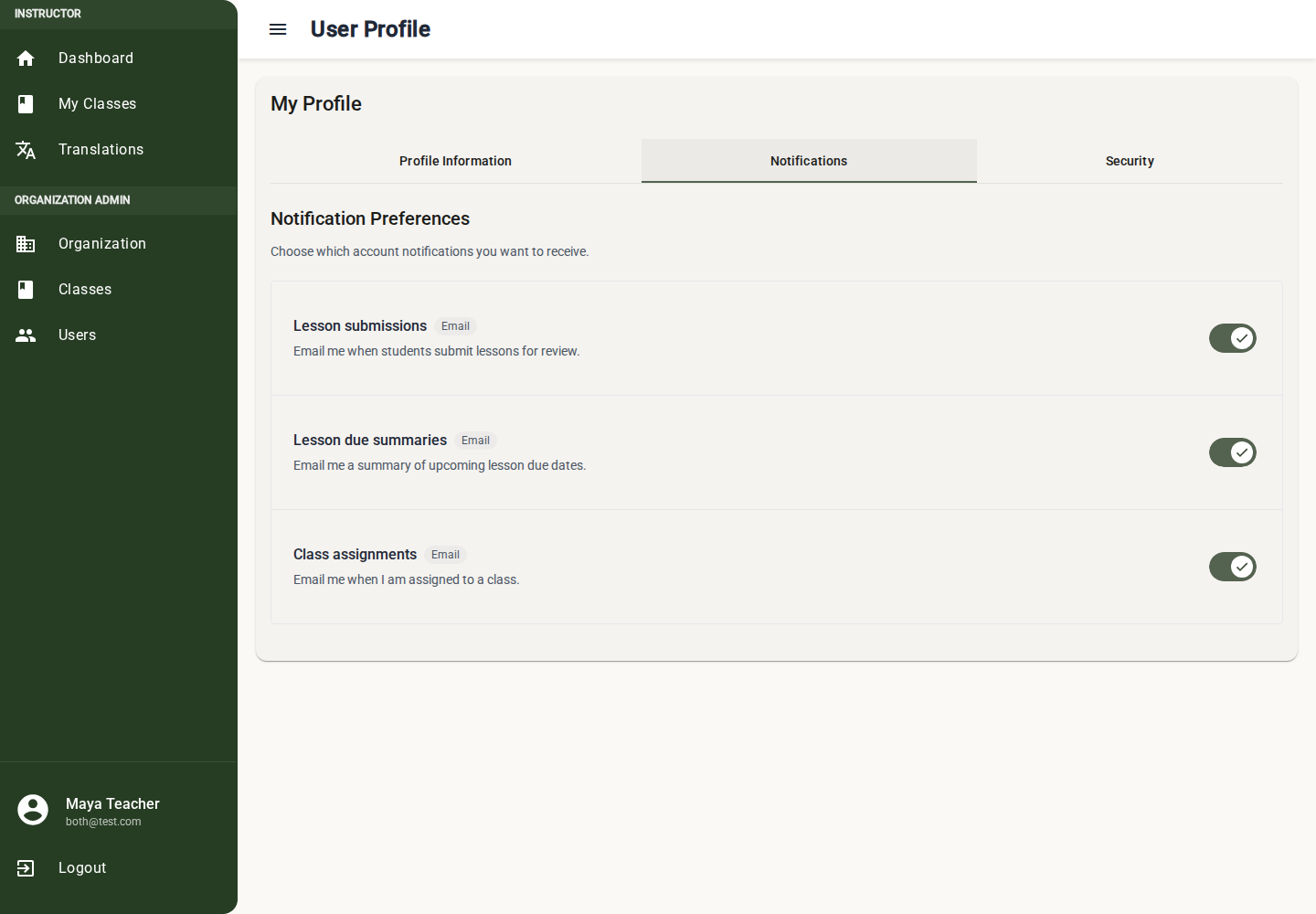
| Notifications | Account notification preferences, such as whether email notifications are enabled for supported events. |
| Security | The change-password form. |
Manage Notification Preferences
- Open User Profile.
- Select the Notifications tab.
- Use each toggle to enable or disable that notification type.
The page saves each preference as you change it. If a preference fails to save, use Retry or refresh the profile page and try again.
Change Your Password
- Open User Profile.
- Select the Security tab.
- Enter Current Password.
- Enter New Password.
- Enter the same value in Confirm New Password.
- Select Change Password.
If the change succeeds, the form clears and the app shows a success message. If it fails, check that the current password is correct and that the new password is at least 8 characters.
Troubleshooting
I can sign in but cannot access a class
Your account may not be assigned to that class. Ask an organization admin or instructor admin to check your class assignments.
I do not see organization settings
Organization settings are only available to roles with organization-management access, such as admin, instructor admin, or super user.
My password setup link no longer works
Use the most recent password email. If the link still fails, ask an administrator to issue a new password setup or reset email.