Appearance
Multiple Choice Editor
Use Multiple Choice when students should pick one correct answer from a fixed set of options. It is best for recognition practice, vocabulary checks, and early review.
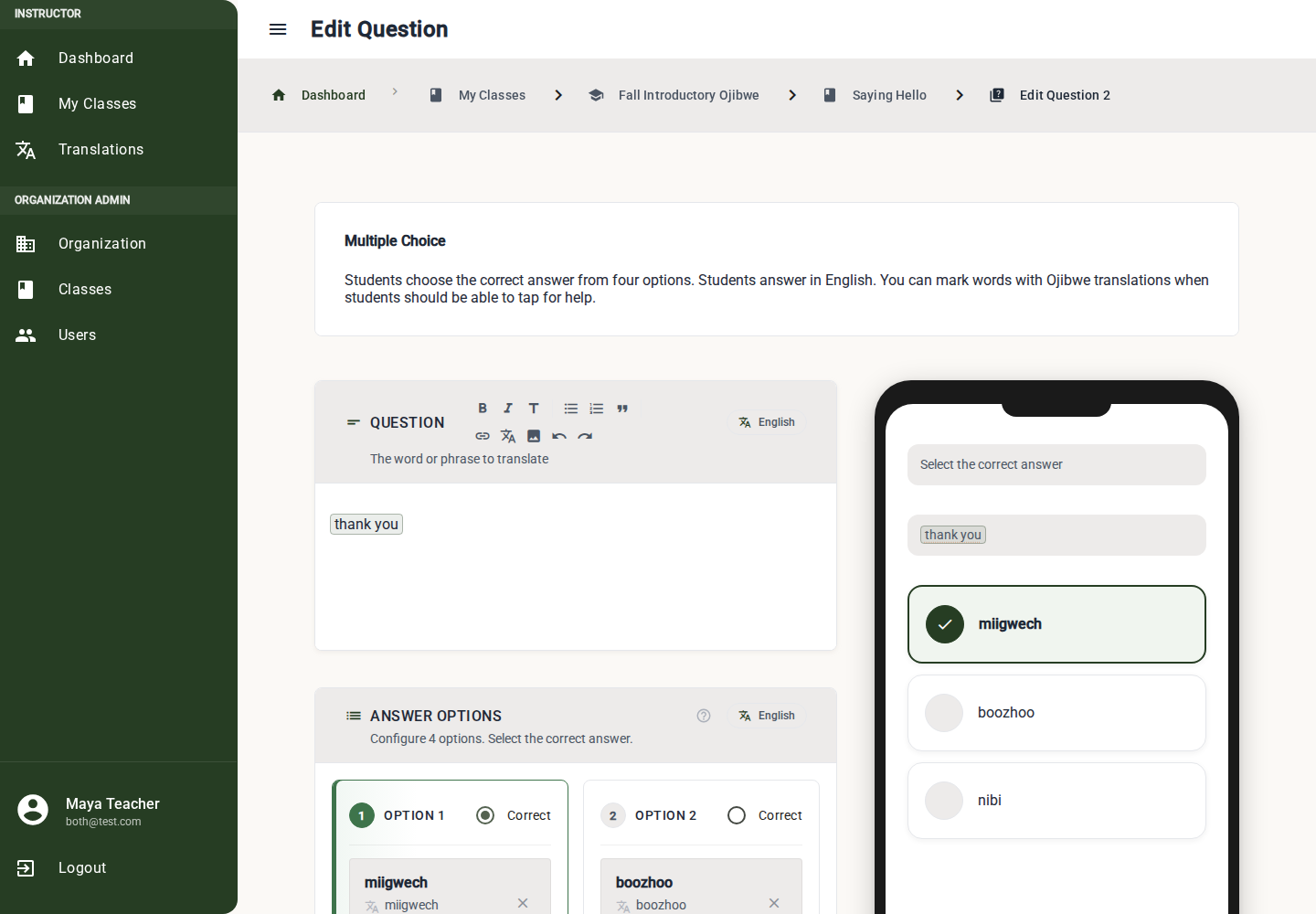
Build a Multiple Choice Question
1. Write the Prompt
Use the rich text Question editor for the text students read before choosing an answer.
Example: "What is 'dog' in Ojibwe?"
Link important words or phrases to translations when the prompt is translatable. See Adding Translated Words in Rich Text.
2. Fill in the Options
The editor shows fixed option cards. Click into each card's text field and type the answer text.
Example:
| Option | Text | Purpose |
|---|---|---|
| 1 | Animosh | Correct answer |
| 2 | Gookoosh | Distractor |
| 3 | Makwa | Distractor |
| 4 | Migizi | Distractor |
3. Add Translations to Options
Each option uses the compact translation control rather than the full rich text editor.
- Open the option's translation control.
- Search for the matching translation.
- Select an existing translation, create a new one, or mark the option as N/A when appropriate.
- Repeat for each option.
Audio linked to the translation is available anywhere that translation is used.
4. Mark the Correct Answer
Select the Correct radio button on the right option. Only one option can be correct.
The correct option is highlighted in the editor and preview so you can verify it before saving.
5. Add Media if Needed
Insert an image in the prompt or instructions when visual context helps students answer.
What Must Be Complete
Before publishing, the editor checks:
- Prompt text is present.
- One option is selected as correct. -- Required option translations are linked or marked No translation needed (N/A).
- Prompt translations are linked when prompt translations are enabled.
Best Practices
- Keep distractors plausible but clearly wrong.
- Avoid options that differ only by punctuation or capitalization.
- Use this editor before harder recall tasks such as Type Answer.
- Use images in the prompt when visual recognition is the learning goal.