Appearance
Type Answer Editor
Use Type Answer when students should recall and type a word or short phrase. It is best for spelling, written recall, and short translation answers.
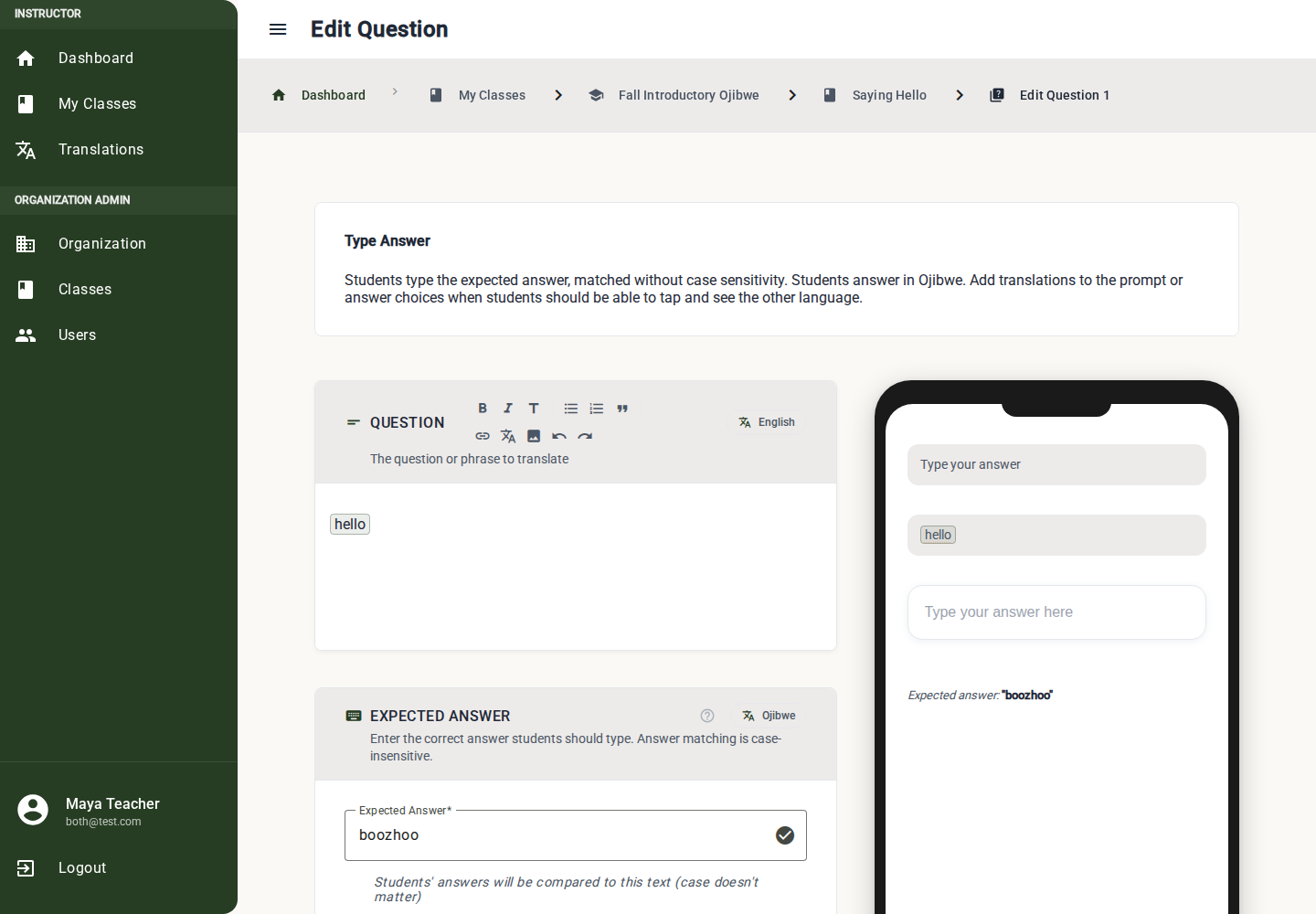
Build a Type Answer Question
1. Write the Prompt
Use the rich text Question editor for the question students answer.
Example: "How do you say 'hello' in Ojibwe?"
Link prompt words to translations when help should be available.
2. Set the Expected Answer
In Expected Answer, type the exact answer students should enter.
Example: aaniin
Answer matching is case-insensitive, so aaniin, Aaniin, and AANIIN match. The text still needs to match exactly otherwise; there is no partial credit.
3. Review the Preview
Students see the prompt and type their answer into a text field. Use the preview to check that the expected answer is clear from the prompt.
What Must Be Complete
Before publishing, the editor checks:
- Prompt text is present.
- Expected answer is not empty.
- Prompt translations are linked when prompt translations are enabled.
Best Practices
- Keep expected answers to one word or a short phrase.
- Use Multiple Choice first if students are still learning the spelling.
- Avoid long answers where minor typos would hide whether the student understood.
- Include pronunciation or romanization in the prompt only when it is part of the learning goal.