Appearance
Dashboard & Navigation
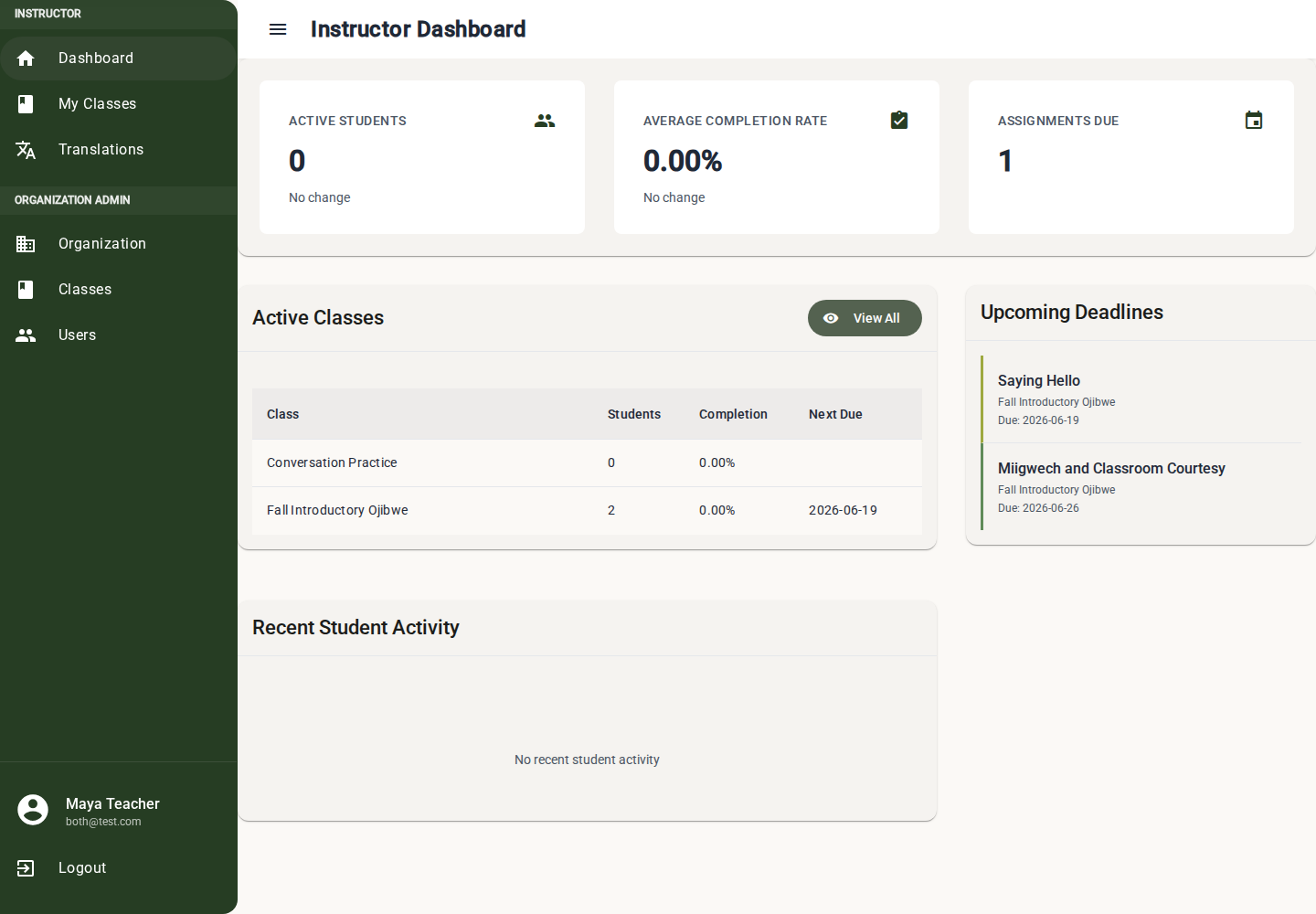
The dashboard is the main landing page after sign in. It helps instructors and instructor admins see active classes, recent student activity, and work that is due soon.
What You See After Sign-In
What you see after sign-in depends on your role. This keeps the first page focused on the work you are allowed to do.
| Role | Dashboard behavior |
|---|---|
| Super user | Shows the organization list. |
| Instructor admin | Shows the instructor dashboard for the current organization. |
| Instructor | Shows the instructor dashboard for assigned classes. |
| Admin | Redirects into organization administration. |
If the app cannot tell what your role is, it shows an error instead of loading class data.
Instructor Dashboard
The instructor dashboard contains three main areas.
Performance Metrics
The top metric cards summarize class activity:
| Metric | Meaning |
|---|---|
| Active Students | Students who have submitted any lesson in the last 30 days. |
| Average Completion Rate | Average score across student submissions. |
| Assignments Due | Lessons with due dates in the next 7 days. |
Use these cards as a quick check before opening individual classes. They are summary indicators, not a replacement for reviewing submissions.
Active Classes
The active classes list shows classes available to you. Open a class from this list when you want to manage:
- Instructors assigned to the class
- Student roster and access codes
- Units and lessons
- Class schedule calendar
- Lesson submissions
If no classes are assigned, the dashboard shows No Classes Assigned with guidance to contact an administrator.
Student Activity
The student activity list shows recent activity across your classes. Use Filter by Student to narrow the list when checking one learner.
Good uses for this panel:
- Find students who recently submitted work.
- Notice activity changes before class.
- Jump from a broad dashboard view into a student or class workflow.
Upcoming Deadlines
The Upcoming Deadlines panel lists lessons with near-term due dates. Select a deadline to open the related lesson.
If there are no upcoming deadlines, the panel shows an empty state.
Main Navigation
The application header and sidebar provide access to the major workflows.
| Destination | Use it for |
|---|---|
| Dashboard | High-level class activity and deadlines. |
| My Classes | Search and open classes assigned to you. |
| Organization | Manage organization details, users, classes, and settings if your role allows it. |
| Translations | Manage reusable dictionary entries and translation assets. |
| Languages | Super-admin language configuration, including pronunciation/romanization support. |
| User Profile | View account information and change your password. |
The sidebar is hidden on authentication screens and preview screens so the focused task gets the full page.
My Classes
The My Classes page is the fastest way for instructors to find a class.
- Open My Classes.
- Use Class Name to filter the list.
- Use Show Deleted when you need an old class.
- Select a class row to open the class detail page.
TIP
Deleted classes are intentionally out of the main view. If a class seems missing, check the deleted toggle before asking an administrator to reassign you.
Common Dashboard States
Loading dashboard data
The dashboard is waiting for class information to load. If it stays in this state, refresh the page and check your internet connection.
Failed to load dashboard data
Use Retry. If it fails again, the app may be temporarily unavailable or your session may have expired.
Workspace not found
The app cannot tell which organization you belong to. Sign out and back in. If it continues, contact an administrator.
No Classes Assigned
Your account works, but no class is assigned to your instructor role. An organization admin or instructor admin needs to assign you to a class.
Daily Workflow
- Open the dashboard and scan Assignments Due.
- Check Student Activity for recent submissions.
- Open classes that need attention.
- Review submissions from the lesson or student detail pages.
- Use the calendar to adjust upcoming lesson dates when pacing changes.