Appearance
Student Detail View
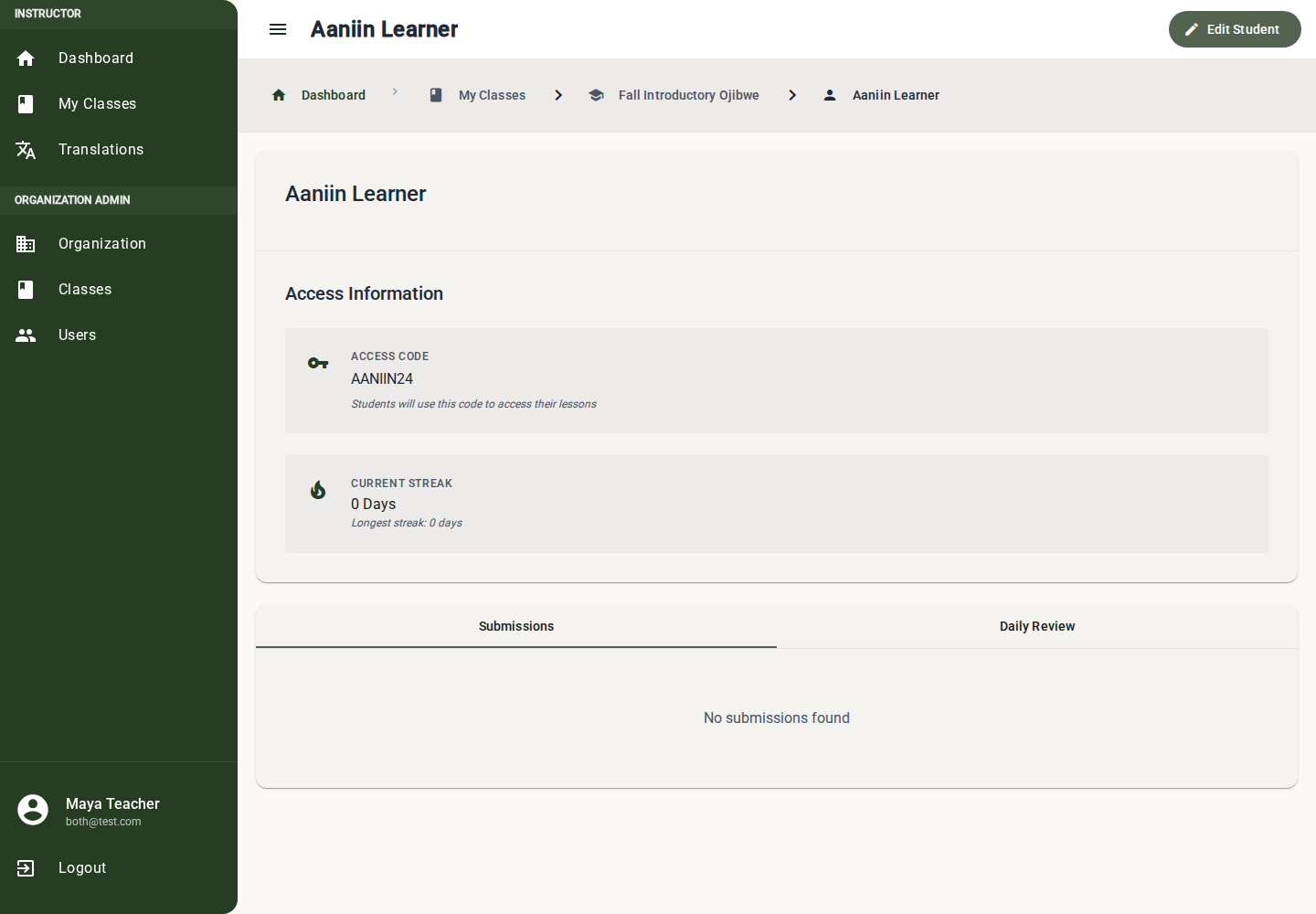
The Student Detail view shows a specific student's access information, submissions, and daily review activity.
Overview
The student detail view helps you:
- Track individual student progress
- Find the student's mobile app access code
- Review lesson submissions
- Review daily review streak and history
Accessing Student Detail
- Navigate to My Classes
- Click on a class to open Class Detail
- Scroll to the Students section
- Click on a student's name
- Use the Submissions and Daily Review tabs
Understanding the View
Progress Indicators
Status Icons
| Icon | Meaning |
|---|---|
| ✓ (green) | Completed (passed) |
| ◐ (yellow) | In Progress (started but not passed) |
| ○ (gray) | Not Started |
| ✗ (red) | Attempted but not passed |
Score Display
For completed lessons, you'll see:
- Score - Percentage correct (for auto-graded questions)
- Attempts - Number of times the student attempted the lesson
Detailed Submission Information
Open a submission row to see:
Submission Details
- All submission attempts
- Date and time of each attempt
- Score for each attempt
- Which questions were correct/incorrect
Time Spent
- How long the student spent on the lesson
- Average time per question
Question Performance
- Which question types the student struggled with
- Specific questions that were answered incorrectly
Identifying Struggling Students
The student detail view helps you spot students who need help:
Warning Signs
| Sign | What It Means |
|---|---|
| Multiple attempts on same lesson | Student having trouble understanding |
| Low scores (below 60%) | May need additional support |
| No recent activity | Student may have dropped off |
| Skipping ahead | Student may be rushing through |
Actions You Can Take
- Send a message - (Future feature) Direct encouragement
- Review their submissions - See exactly what they're getting wrong
- Schedule one-on-one - Address difficulties personally
- Adjust due dates - Give more time if needed
Best Practices
Regular Reviews
- Check student detail pages weekly
- Identify students falling behind early
- Celebrate students who are excelling
Intervention Strategies
For students showing warning signs:
- Low engagement - Send reminder, call home
- Struggling with content - Review submissions, provide extra help
- Multiple attempts - Offer tutoring or study session
- Skipping lessons - Discuss barriers to completion
Documentation
Use the student detail view to:
- Track progress over time
- Document interventions taken
- Report to parents/guardians
- Plan targeted support
Troubleshooting
Progress Shows 0% Despite Activity
- Lessons may be in draft status
- The student may have opened content without submitting the completed lesson
- Check that lessons are published
Can't View Student Detail
- You may not have permission to view this student
- Verify you're an instructor on their class
- Contact admin if access is needed
Score Not Showing
- Lesson may not have been completed yet
- Record Audio questions do not affect the auto-graded percentage unless the lesson has no gradeable questions
- Audio-only or information-only completed lessons show a 100% completion score
- Multiple attempt lessons show best score
Related Features
- Student Management - Adding and managing students
- Submissions Review - Grading student work
- Daily Review - Independent practice tracking