Appearance
Lesson Content
Lesson content is the ordered list students move through inside a lesson. A lesson can contain questions and information entries in one sequence, so you can teach something first and then ask students to practice it.
Content Types
When you select Add Content in a lesson, the dialog offers two choices.
| Choice | Use it for | What happens next |
|---|---|---|
| Question | Students answer a practice prompt. Most question types are graded automatically. The next dialog lets you choose the question type and the language students answer in. | Opens the question-type dialog. |
| Information | Students read text or view media without answering. | Creates an information entry and opens the information editor. |
The lesson content table shows all of these together.
Lesson Content Table
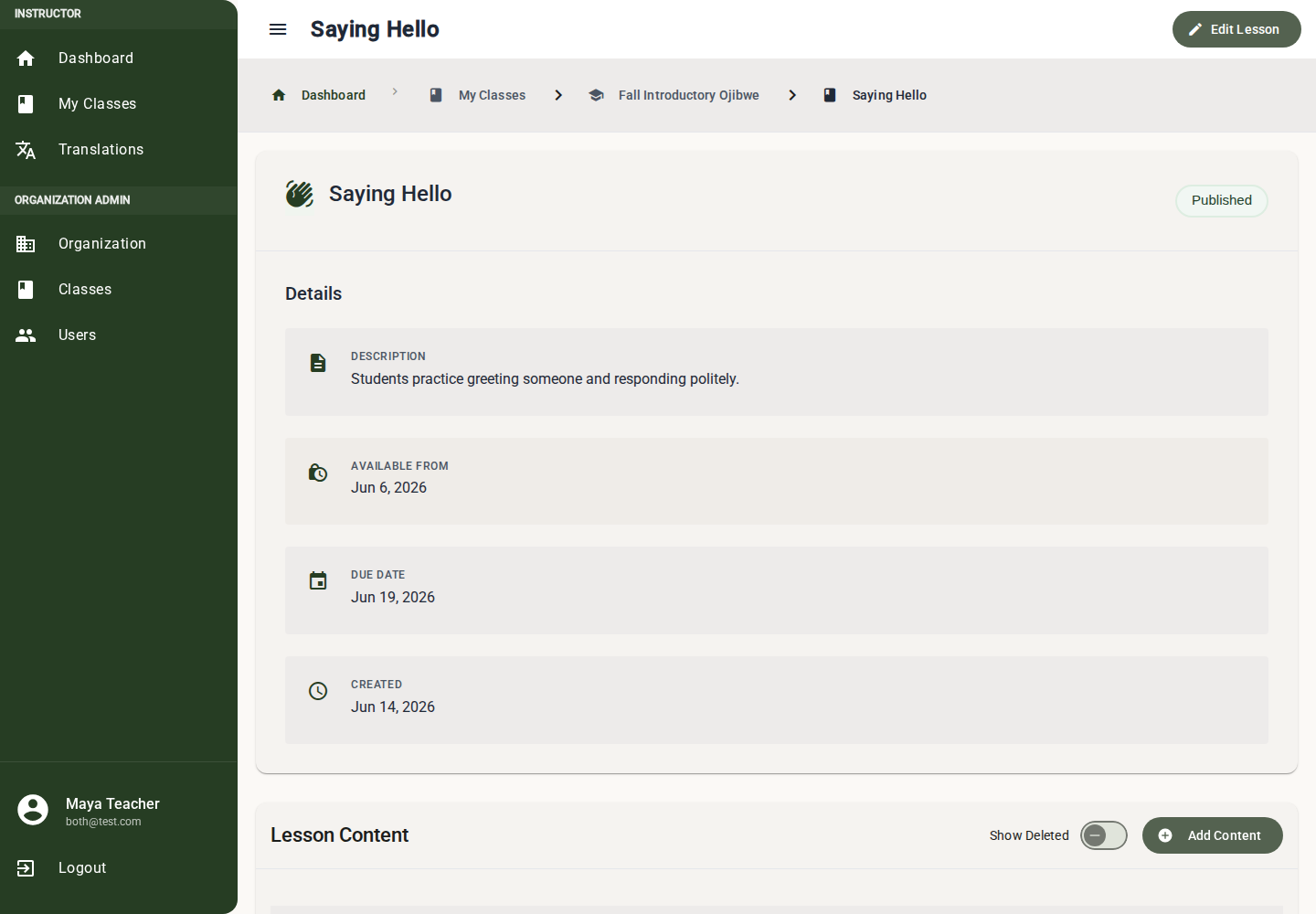
The lesson detail page has a Lesson Content card.
| Column | Meaning |
|---|---|
| Drag handle | Reorder content inside the lesson. |
| # | Current order on the page. |
| Type | Question type name or Information. |
| Preview | Short preview generated from the content. |
| Published | Draft or published state. |
| Actions | Delete or restore, depending on the current filter. |
Use Show Deleted to view deleted content. Deleted content is hidden from normal lesson flow and excluded from bulk publish windows.
Add Lesson Content
- Open a lesson.
- In Lesson Content, select Add Content.
- Choose Question or Information.
- For a question, choose the question type and Students answer in language.
- Complete the editor that opens.
- Save the item.
- Publish it directly from its editor or use Bulk Publishing.
Reorder Content
Drag a row by its handle to move it in the lesson sequence.
The new order is saved immediately. If saving fails, the table reloads and shows the last saved order.
Good ordering usually looks like:
- Context or vocabulary information.
- Recognition questions.
- Recall questions.
- Sentence-building or fill-in-the-blanks.
- Audio practice.
- Review or reflection question.
Open and Edit Content
Select a row to open it.
| Row type | Destination |
|---|---|
| Question | Question editor or question view. |
| Information | Information editor. |
Questions and information entries each have their own save rules. The lesson content table is the place where they are ordered together.
Publish Content
There are three ways to publish lesson content:
| Method | Best for |
|---|---|
| Individual editor publish toggle | Working on one item. |
| Draft question status chip in the lesson content table | Quickly publishing one complete question. |
| Bulk publishing | Publishing or unpublishing a lesson or unit with many items. |
Information entries are best published from the information editor or the bulk publish window.
Delete and Restore
Use Delete when content should no longer appear in the active lesson but should remain available for later.
- Select the delete icon on the row.
- Confirm the delete dialog.
- The content leaves the active list.
To restore it:
- Turn on Show Deleted.
- Select the restore icon.
- The content returns to the active list.
Content-Only Lessons
A lesson can contain only information entries. When a student completes an information-only lesson, it counts as complete and receives a 100% completion score because there were no gradeable questions to miss.
Use content-only lessons for:
- Orientation.
- Cultural background.
- Reading assignments.
- Vocabulary reference before a later quiz.
Design Patterns
Teach Then Check
| Order | Content |
|---|---|
| 1 | Information: introduce words or context. |
| 2 | Multiple choice: check recognition. |
| 3 | Type answer: check recall. |
Culture Then Reflection
| Order | Content |
|---|---|
| 1 | Information: cultural note, story excerpt, or image. |
| 2 | Question: ask a comprehension question and set Students answer in to the primary language. |
| 3 | Record audio: practice speaking a related phrase. |
Practice Set
| Order | Content |
|---|---|
| 1 | Information: instructions for the practice set. |
| 2 | Fill in the blanks. |
| 3 | Build sentence. |
| 4 | Type answer. |
Common Issues
Add Content is disabled or fails
Check that the lesson, unit, class, and organization data finished loading. If organization languages are missing, question creation cannot choose its language configuration.
A content item is not in the publish dialog
Deleted content is excluded. Turn on Show Deleted in the lesson content table to find it.
Reordering does not stick
The app could not save the new order. Refresh the lesson, then try again. If the item is deleted or no longer belongs to the lesson, reordering will fail.
Students see content in the wrong order
Check the active list with Show Deleted off. The student flow follows active sequence order, not the order in deleted views.